
How to Manage Contacts & Lists
Video chapters
This short video walks you through managing your farm's contacts in Farmhand — the built-in segments, creating new contacts, building custom lists, and putting those lists to work in campaigns. You can follow along:
- 0:00 Where contacts live & the All Contacts page
- 0:23 Built-in segments explained
- 1:07 Creating a new contact
- 1:51 What a new contact's profile shows (and what it doesn't yet)
- 2:27 Adding a contact to a list from their profile
- 2:58 Adding a contact directly from a list
- 3:23 Creating a custom list
- 3:52 Adding an existing customer to a list
- 4:21 Downloading a list as a CSV
- 4:28 Using lists in campaigns
Find your contacts
From your dashboard, click Contacts in the sidebar. You'll land on All Contacts — everyone who's ever been associated with your farm.
Built-in segments
The other segments already have filter criteria applied:
- Retail Customers — placed at least one retail order.
- Wholesale Customers — placed at least one wholesale order.
- Active Members — have an active subscription right now.
- Inactive Members — had a subscription in the past, but not currently.
- Site Hosts — if you're using the site host program.
- Orders This Week / Orders Next Week — customers with upcoming fulfillments.
- Waitlist — signed up for your waitlist.
Create a contact
- On the All Contacts page (this button lives here only), click Create Contact.
- Enter a first name, last name, and at least one of email or phone number.
- Click Create, then search or scroll to find them.
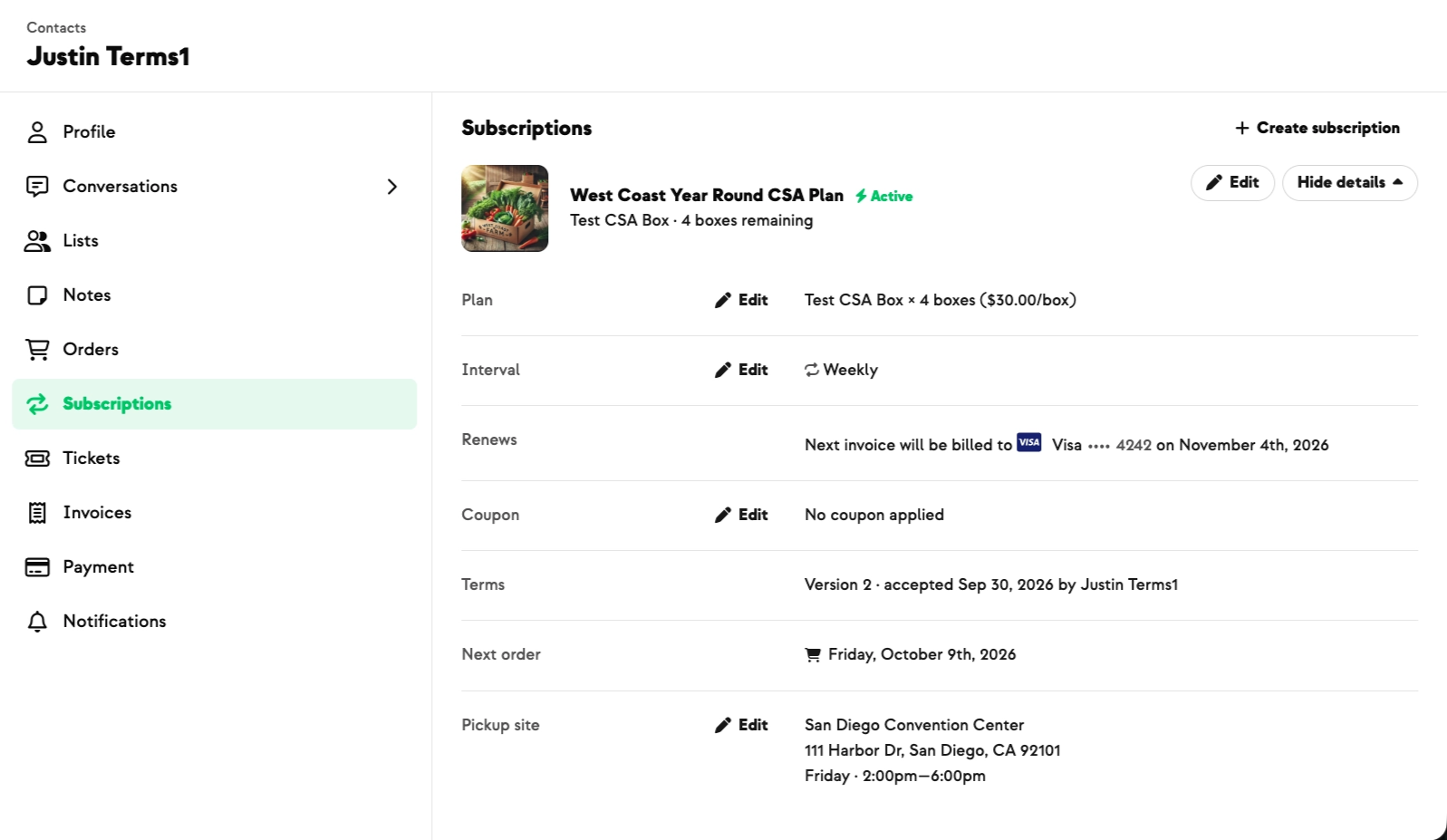
A brand-new contact starts with an empty conversation, no lists, no orders, and no subscriptions. A few tabs you're used to seeing on subscribers — Invoices, Payments, Notifications — won't appear until they have an order or subscription.
Add a contact to a list
- Open the contact and go to the Lists tab.
- Click Add to List and pick the list (e.g., Newsletter).
The list shows on their profile, and they'll show up when you view the list itself. You can also add someone directly from a list — click Create while viewing it, and the new contact lands on that list and in All Contacts.
Create a custom list
Say you want a list of everyone who visited your farmers' market booth that day:
- In Contacts, click the + to create a new list.
- Name it (e.g., Farmer's Market). It starts empty.
- Click Create inside the list to start adding people.
Add an existing customer to a list
Farmhand automatically matches on name, email, or phone. If the customer already exists, just enter their email in the list's Create Contact form — their name and phone fill in automatically, and no duplicate is created.
Download or message a list
- CSV — export any list or segment with the CSV button.
- Campaigns — go to Campaigns → Create and filter the audience to your list. Perfect for telling your Farmer's Market list the next time you'll be at the market.
New on Farmhand


Your farm is growing.
Your platform should keep up.
Our roadmap is built from farmer conversations, not corporate planning cycles. You ask. We build. You see it live.