
Managing products: price groups, members-only access, and recurring discounts

Manage products: set price groups (retail, wholesale, member), restrict to members, and apply recurring discounts.
Before you start: Decide your price groups (do you sell wholesale?) and identify any friends/family members who get standing discounts.
- Go to Dashboard → Products.
- Click a product to open the Pricing tab. Set your retail price, wholesale price (separate storefront), and a member price if applicable.
- Use member price in one of two ways:
- As a discount off retail (members pay less for the same item, available to all)
- As an access restriction (members-only — non-members can't buy)
- For per-product edits, open the details tab: descriptions, tags, vendor/freezer tag for reports, "new" badge, per-order maximums, location restrictions, photos.
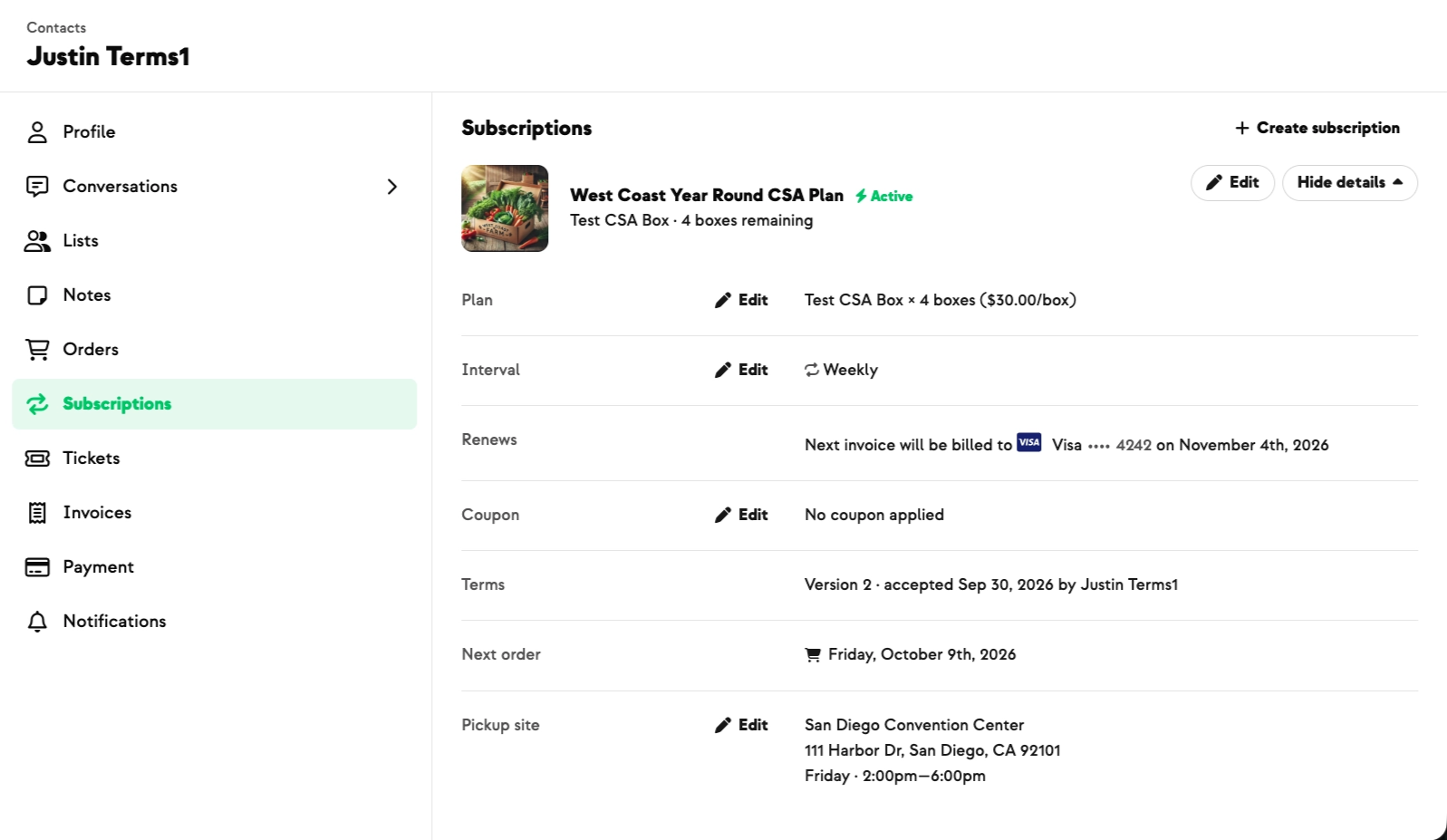
- To apply a recurring discount (e.g., 10% off for friends/family on every subscription cycle):
- Create a coupon code with the discount, OR
- Apply a recurring credit that auto-offsets each invoice (e.g., "1 gallon free per cycle")
- Use bulk edits when changing many products at once (seasonal pricing, availability toggles).
Add-On Only:
If you have a Customizable plan and offer a discount when customers purchase credit in advance, you may want to make certain products ineligible for that credit to preserve your margins on them.
Enabling the Add-on only setting prevents an item from being deducted from customizable plan credit, so the full price is always charged to the customer's card or bank account. Other types of credit, such as referral bonuses or refunds for missing items, can still be applied.
✅ Success: open the customer's invoice — you can see the recurring credit applied as a line item every cycle.
⚠️ What to know
- Retail and wholesale are separate storefronts. Same product can have both prices; customer sees only the storefront matching their account type.
- Vendor/freezer tags drive report filters. Tag now so your harvest reports are filterable later.
- Recurring discounts on subscriptions = coupons. Coupons don't apply to one-time orders.
- Per-order maximums prevent bulk-buying if a product is scarce — useful for limited-supply items.
New on Farmhand



Your farm is growing.
Your platform should keep up.
Our roadmap is built from farmer conversations, not corporate planning cycles. You ask. We build. You see it live.